> ## Documentation Index
> Fetch the complete documentation index at: https://docs.tight.com/llms.txt
> Use this file to discover all available pages before exploring further.
# Model Context Protocol
> Integrate Tight accounting capabilities using Tight's Model Context Protocol (MCP) server
The Tight Model Context Protocol (MCP) server provides a set of tools that AI agents can use to interact with the Tight
API. You can use the MCP tools as a developer embedding Tight into your product, as a business owner looking for
financial insights, or as your platform seeking to perform comparative analytics across all businesses on your platform.
## Connect to Tight's MCP Server
### Connect as a bookkeeper or support agent
Configure your AI tool to point at the Tight MCP server using the parameters below. After you finish setup, your tool
walks you through the [OAuth flow](#authenticate-with-oauth) to sign in and grant access.
For Claude Pro, Max, Team, or Enterprise users, add Tight as a custom connector. To learn more, see the Claude
[documentation](https://support.claude.com/en/articles/11175166-get-started-with-custom-connectors-using-remote-mcp).
In the Claude desktop or web app, go to **Settings** > **Connectors** > **Add custom connector** and use the
following parameters:
* **Remote MCP server URL**: `https://mcp.tight.com` for production or `https://mcp.sandbox.tight.com` for sandbox
* **Connection mechanism**: OAuth
For ChatGPT Pro, Plus, Business, Enterprise, or Education users, follow the
[OpenAI documentation](https://platform.openai.com/docs/guides/developer-mode) for custom connectors using the
following parameters:
* **Server URL**: `https://mcp.tight.com` for production or `https://mcp.sandbox.tight.com` for sandbox
* **Connection mechanism**: OAuth
### Connect as a developer
Register the Tight MCP server with your development tool using the configuration below. Once registered, your tool
prompts you through the [OAuth flow](#authenticate-with-oauth) to sign in and grant access.
Execute the following command to register the Tight MCP server. To learn more, see the Claude Code
[documentation](https://docs.anthropic.com/en/docs/claude-code/mcp#configure-mcp-servers).
```bash Production theme={null}
claude mcp add-json tight '{"type":"http","url":"https://mcp.tight.com/"}'
```
```bash Sandbox theme={null}
claude mcp add-json tight '{"type":"http","url":"https://mcp.sandbox.tight.com/"}'
```
Add the following to your `.vscode/mcp.json`. To learn more, see the VS
Code [documentation](https://code.visualstudio.com/docs/copilot/chat/mcp-servers).
```json Production theme={null}
{
"servers": {
"tight": {
"type": "http",
"url": "https://mcp.tight.com"
}
}
}
```
```json Sandbox theme={null}
{
"servers": {
"tight": {
"type": "http",
"url": "https://mcp.sandbox.tight.com"
}
}
}
```
Use the remote server URL `https://mcp.tight.com` for production or `https://mcp.sandbox.tight.com` for sandbox,
with an `accessToken` obtained via the Tight [Authentication Endpoint](/api-reference/authentication).
```json Production theme={null}
{
"mcpServers": {
"tight": {
"command": "npx",
"args": [
"mcp-remote",
"https://mcp.tight.com",
"--header",
"Authorization:${AUTH_HEADER}"
],
"env": {
"AUTH_HEADER": "Bearer ${tight_access_token}"
}
}
}
}
```
```json Sandbox theme={null}
{
"mcpServers": {
"tight": {
"command": "npx",
"args": [
"mcp-remote",
"https://mcp.sandbox.tight.com",
"--header",
"Authorization:${AUTH_HEADER}"
],
"env": {
"AUTH_HEADER": "Bearer ${tight_access_token}"
}
}
}
}
```
### Connect your existing AI chat interface
The Tight MCP server allows you to easily connect your product's existing AI chat interface by accepting the standard
Authorization header on any request.
Simply [generate an access token](/api-reference/authentication) and pass this on all requests to the Tight MCP server.
## Authenticate with OAuth
Once you attempt to connect, you are presented with a standard OAuth flow. Sign in with your email and password to
authenticate.
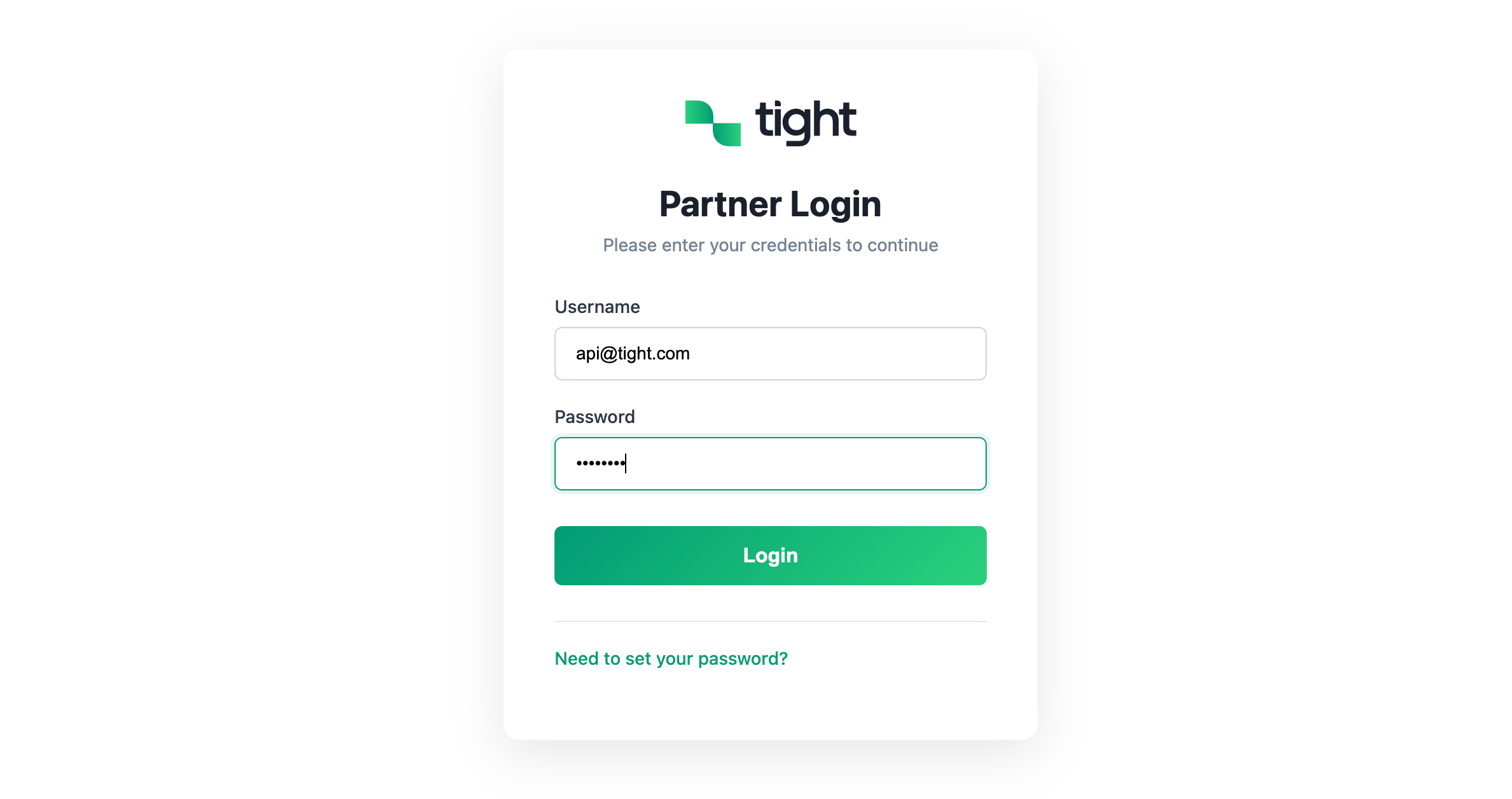 If you do not yet have a password, select the option to email yourself a link to set one, then return to the login
screen to sign in.
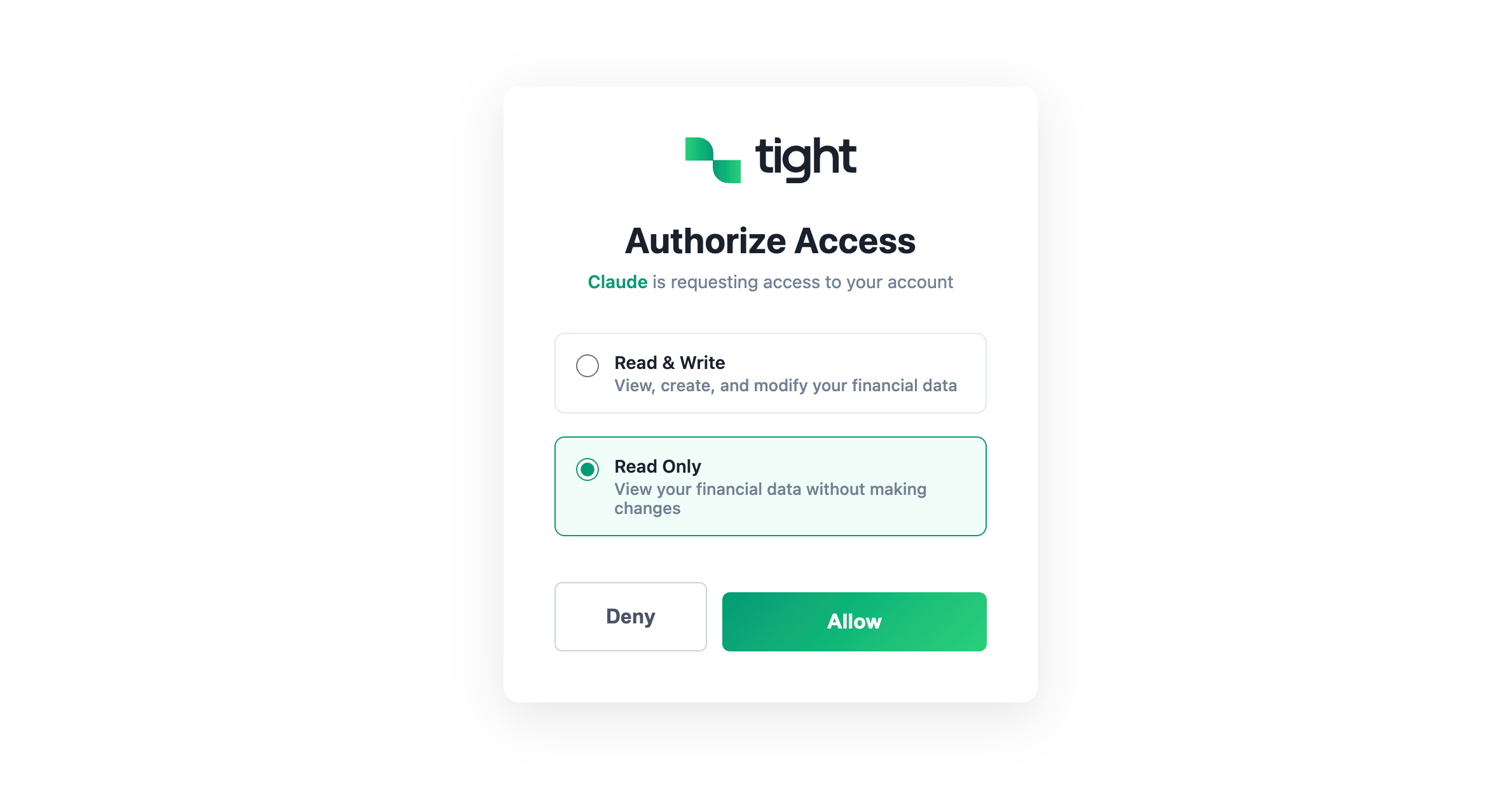
After authenticating, you are asked to grant access. Choose the level of access to grant the connection:
* **Read-only**: The connection can view your data but cannot make changes.
* **Read and write**: The connection can both view your data and make changes on your behalf.
If you do not yet have a password, select the option to email yourself a link to set one, then return to the login
screen to sign in.
After authenticating, you are asked to grant access. Choose the level of access to grant the connection:
* **Read-only**: The connection can view your data but cannot make changes.
* **Read and write**: The connection can both view your data and make changes on your behalf.
 ## Tools
Once connected, you can now interact with the Tight API using your AI tool of choice. The Tight MCP server exposes a
variety of [MCP tools](https://modelcontextprotocol.io/specification/2025-06-18/server/tools) grouped by domain area.
Review the specific tools for each below:
* [Bank Transactions](/ai/mcp-tools/bank-transactions-mcp)
* [Embedding & Integration](/ai/mcp-tools/embedding-and-integration-mcp)
* [Financial Statements](/ai/mcp-tools/financial-statements-mcp)
* [Invoicing](/ai/mcp-tools/invoicing-mcp)
## Tools
Once connected, you can now interact with the Tight API using your AI tool of choice. The Tight MCP server exposes a
variety of [MCP tools](https://modelcontextprotocol.io/specification/2025-06-18/server/tools) grouped by domain area.
Review the specific tools for each below:
* [Bank Transactions](/ai/mcp-tools/bank-transactions-mcp)
* [Embedding & Integration](/ai/mcp-tools/embedding-and-integration-mcp)
* [Financial Statements](/ai/mcp-tools/financial-statements-mcp)
* [Invoicing](/ai/mcp-tools/invoicing-mcp)