> ## Documentation Index
> Fetch the complete documentation index at: https://docs.tight.com/llms.txt
> Use this file to discover all available pages before exploring further.
# Square
> Automate the reconciliation between Square payouts and their itemized transactions with Tight
## Overview
Instead of building an integration with Square in-house, Tight communicates directly with Square on your behalf using
your [Square Developer](https://developer.squareup.com/us/en) account. This enables you to own the relationship between
your customer and Square, while getting automatic invoice, payment, and payout reconciliation on the user's books.
## Automated Reconciliation
Square deposits money directly into your users' bank accounts on a regular cadence. When utilizing one of the Tight Bank
Transactions integrations, e.g. [Plaid](/integrations/banking/plaid), the bank deposit to the user's bank account will
also be ingested by the Tight API as part of that integration's bank feed. Importantly, Tight's algorithms automate the
reconciliation between that bank deposit and the itemized transactions within Square, saving your users time that would
have otherwise been spent manually reconciling these transactions in legacy accounting systems.
### Order Payout Example
1. The business owner processes 4 orders of \$1000 each through Square (e.g., point-of-sale transactions, online orders,
invoices).
2. These 4 Square orders are automatically synced into Tight as invoices.
3. Customers pay for their orders via 4 separate credit card payments. Square deducts processing fees from each payment
(2.9% + \$0.30 per transaction = \$29.30 per payment).
4. Square groups these payments (now \$970.70 each after fees) into a single payout.
5. The user receives a payout from Square for \$3882.80 (\$4000 minus \$117.20 in processing fees), also seen as a
\$3882.80
deposit into their checking account.
6. The Tight API automatically matches the 4 synced invoices with the one payout, and creates expenses for the
processing
fees deducted from each payment. Additionally, the Tight Embedded experience nests these transaction line items
neatly
under a single payout row.
## Create a Square Application
If you haven't already, sign up for a [Square Developer](https://developer.squareup.com/us/en) account. Once created,
add a new Square application from the developer console.
### Setup Square OAuth
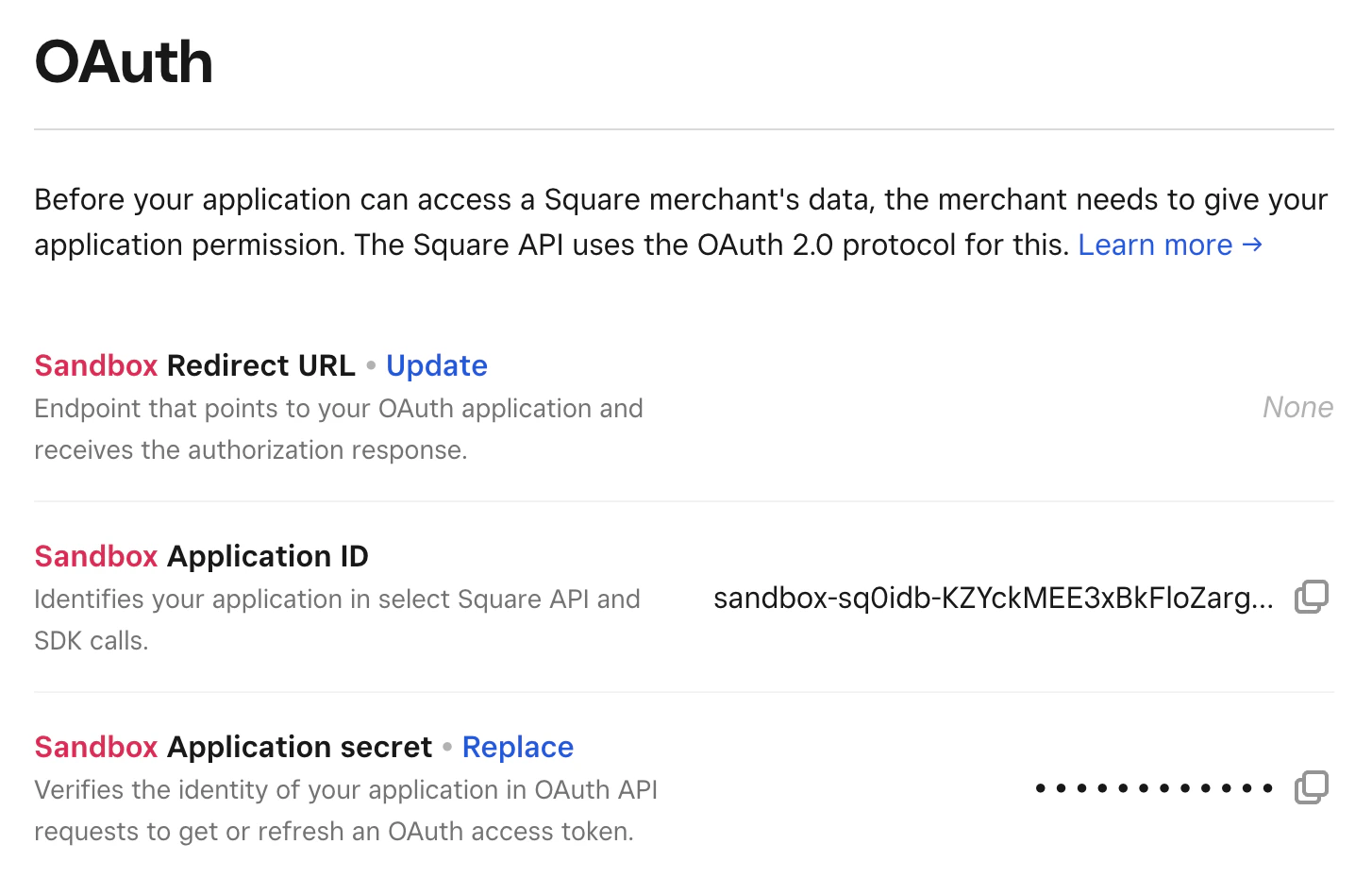
Tight's Square integration utilizes OAuth 2.0 to read your users' seller data. Once your Square application is
created, navigate to the OAuth menu item from the navigation bar.
#### Step 1: Configure Redirects
For the OAuth redirect URLs, add `https://redirect.sandbox.tight.com/integrations/square`.
While there, please note down the "Application ID" and the "Application Secret."
 #### Step 2: Connect Tight Webhook URLs (Real-Time Updates)
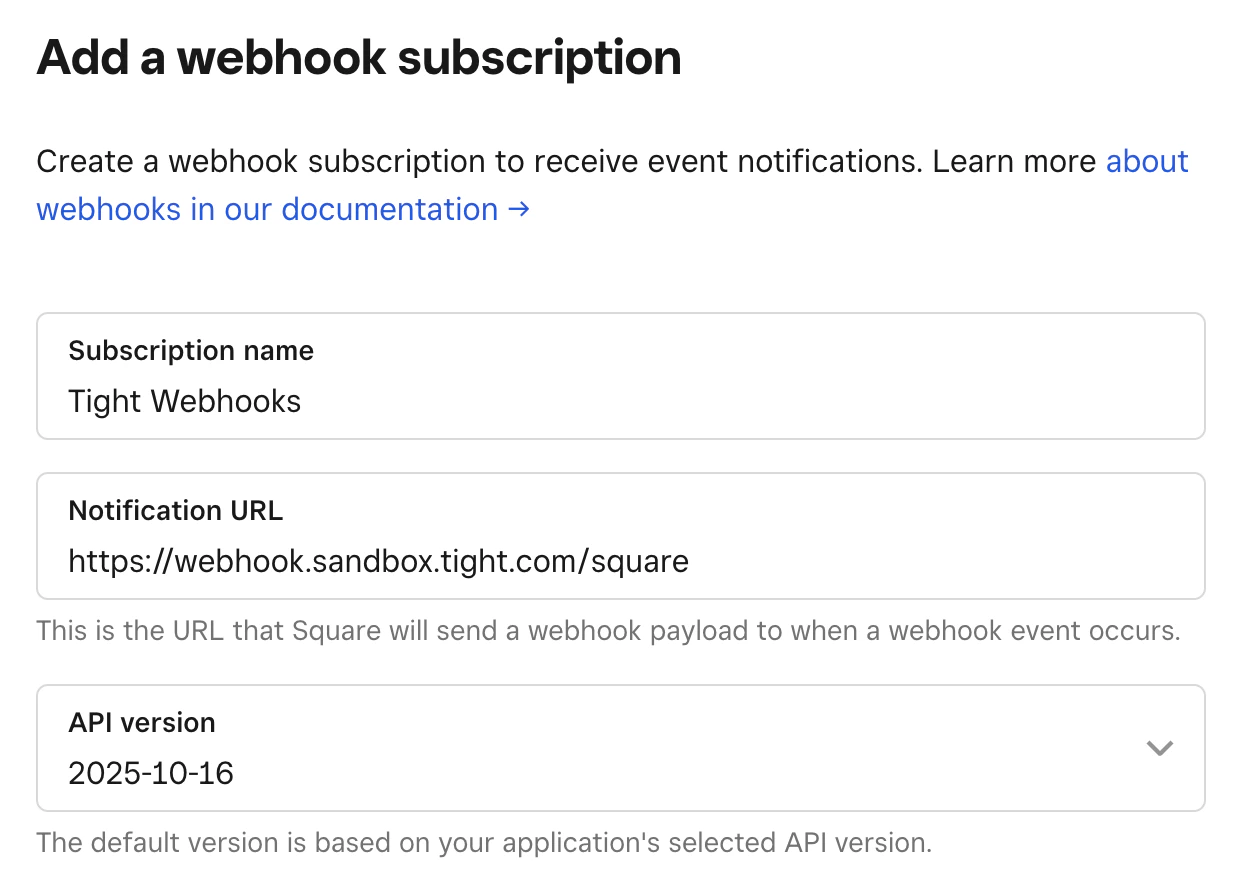
By subscribing the Tight API to receive webhooks on your Square dashboard, Tight will be able to pull in updates to your
users' commerce data in real-time.
To do so, click on "Webhooks" then "Add subscription" which will open a new webhook form. Provide a name and specify
the notification URL as `https://webhook.sandbox.tight.com/square`. Be sure to enable all Customers, Invoices, Orders,
Payments, Payouts, Refunds, and Vendors events.
#### Step 2: Connect Tight Webhook URLs (Real-Time Updates)
By subscribing the Tight API to receive webhooks on your Square dashboard, Tight will be able to pull in updates to your
users' commerce data in real-time.
To do so, click on "Webhooks" then "Add subscription" which will open a new webhook form. Provide a name and specify
the notification URL as `https://webhook.sandbox.tight.com/square`. Be sure to enable all Customers, Invoices, Orders,
Payments, Payouts, Refunds, and Vendors events.
 #### Step 3: Production Setup
Once you are ready to go live in the "Production" environment, toggle to Production and add the following OAuth redirect
URL: `https://redirect.prod.tight.com/integrations/square`. Additionally, configure a webhook subscription for
`https://webhook.prod.tight.com/square` with the same set of events.
## Securely share your Square keys
The last field that is needed is a "Secret key", which you can find on
the [API keys](https://dashboard.square.com/test/apikeys) page. Under the "Standard keys" section, you will see a "
Secret key" row. You should note down the `token` field for the Secret key.
Once collected, use the Tight API to [configure your Square integration](/api-reference/integrations/configure-square).
## Connect your user's Square accounts
There are three primary ways to connect your users' Square accounts to their company in Tight:
1. For partners including commerce platform linkage from their own UX, use
the [Start Square Flow API](/api-reference/integration-management/start-square-flow) which wraps the entire OAuth 2.0
flow such that you simply need to redirect your user to a single URL.
2. Tight's Embedded UI also provides UX from which users can kick off the Square connection flow, e.g. when onboarding
in the [Transaction Dashboard](/embeddable-ui/react/bank-transactions/transactions-dashboard)
3. For partners with existing Square
integrations, [programmatically link the user's Square account](/api-reference/integration-management/link-square)
#### Step 3: Production Setup
Once you are ready to go live in the "Production" environment, toggle to Production and add the following OAuth redirect
URL: `https://redirect.prod.tight.com/integrations/square`. Additionally, configure a webhook subscription for
`https://webhook.prod.tight.com/square` with the same set of events.
## Securely share your Square keys
The last field that is needed is a "Secret key", which you can find on
the [API keys](https://dashboard.square.com/test/apikeys) page. Under the "Standard keys" section, you will see a "
Secret key" row. You should note down the `token` field for the Secret key.
Once collected, use the Tight API to [configure your Square integration](/api-reference/integrations/configure-square).
## Connect your user's Square accounts
There are three primary ways to connect your users' Square accounts to their company in Tight:
1. For partners including commerce platform linkage from their own UX, use
the [Start Square Flow API](/api-reference/integration-management/start-square-flow) which wraps the entire OAuth 2.0
flow such that you simply need to redirect your user to a single URL.
2. Tight's Embedded UI also provides UX from which users can kick off the Square connection flow, e.g. when onboarding
in the [Transaction Dashboard](/embeddable-ui/react/bank-transactions/transactions-dashboard)
3. For partners with existing Square
integrations, [programmatically link the user's Square account](/api-reference/integration-management/link-square)