> ## Documentation Index
> Fetch the complete documentation index at: https://docs.tight.com/llms.txt
> Use this file to discover all available pages before exploring further.
# Rutter
## Overview
Instead of building separate integrations with dozens of commerce platforms in-house, Tight communicates with multiple commerce platforms through [Rutter](https://www.rutter.com/), a unified commerce API. Rutter connects to platforms like Shopify, Amazon, WooCommerce, BigCommerce, and many others, enabling you to provide your customers with seamless commerce integrations while getting automatic invoice, payment, and payout reconciliation on their books.
With Rutter, you own the relationship between your customer and their commerce platforms, while Tight handles the complexity of automated reconciliation across all their sales channels.
## Automated Reconciliation
Commerce platforms deposit money directly into your users' bank accounts on a regular cadence. When utilizing one of the Tight Bank Transactions integrations, e.g. [Plaid](/v5.0/integrations/banking/plaid/integrating-plaid), the bank deposit to the user's bank account\
will also be ingested by the Tight API as part of that integration's bank feed. Importantly, Tight's algorithms automate the reconciliation between that bank deposit and the itemized transactions within the commerce platform, saving your users time that would have otherwise been spent manually reconciling these transactions in legacy accounting systems.
### Multi-Platform Order Payout Example
1. The business owner processes orders across multiple platforms through Rutter-connected channels (e.g., Shopify online store, Amazon marketplace, WooCommerce site).
2. These orders are automatically synced into Tight as invoices through Rutter's unified API.
3. Customers pay for their orders via various payment methods. Each platform deducts processing fees and marketplace fees from payments.
4. Each platform groups payments into periodic payouts according to their individual schedules.
5. The user receives separate payouts from each platform (e.g., \$3,850 from Shopify, \$2,100 from Amazon), also seen as deposits into their checking account.
6. The Tight API automatically matches the synced invoices with the corresponding payouts across platforms, creates expenses for all processing fees and marketplace commissions, and reconciles the net amounts. Additionally, the Tight Embedded experience nests these transaction line items neatly under their respective payout rows.
## Supported Commerce Platforms
Through Rutter's unified API, Tight supports automatic reconciliation for:
* **Shopify** - Online store orders, payments, and payouts
* **Amazon** - Marketplace orders, settlements, and fees
* **WooCommerce** - WordPress-based e-commerce transactions
* **BigCommerce** - Multi-channel commerce orders
* **Squarespace** - Website commerce transactions
* **Square** - Point-of-sale and online orders
* **Etsy** - Marketplace sales and payments
* **eBay** - Auction and fixed-price listings
* And many more platforms supported by Rutter
## Create a Rutter Account
If you haven't already, sign up for a [Rutter](https://dashboard.rutterapi.com/sign-up) developer account. Once created, you'll have access to the Rutter dashboard where you can configure your integration settings.
### Setup Rutter OAuth
Tight's Rutter integration utilizes OAuth 2.0 to read your users' commerce data across multiple platforms. Navigate to your Rutter dashboard to configure OAuth.
#### Step 1: Enable Production Access
Request Production access for your account from Rutter [here](https://dashboard.rutterapi.com/request-access).
#### Step 2: Enable Commerce Platforms
In your Rutter dashboard, navigate to the Platforms section and enable the commerce platforms you want to support for your users. Some platforms may require you to create a developer account with that platform and provide platform-specific credentials.
Rutter provides detailed setup guides for each platform in their [documentation](https://docs.rutter.com/supported-platforms).
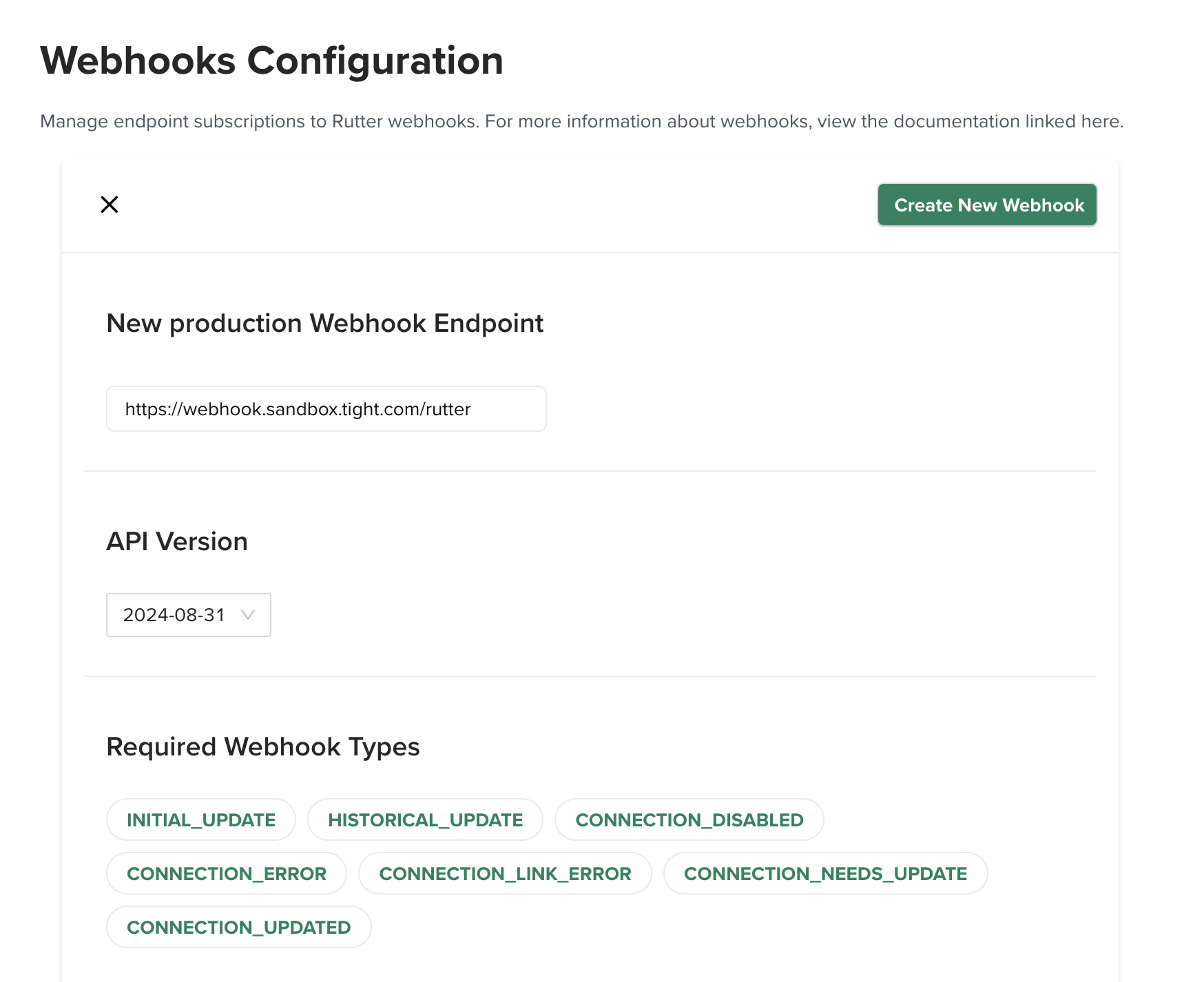
#### Step 3: Connect Tight Webhook URLs (Real-Time Updates)
By subscribing the Tight API to receive webhooks from Rutter, Tight will be able to pull in updates to your users' commerce data in real-time as they occur across all connected platforms.
To configure webhooks, navigate to the Webhook Configuration section in your Rutter dashboard and add `https://webhook.sandbox.tight.com/rutter` as your webhook URL.
 #### Step 4: Production Setup
Once you are ready to go live in the Production environment, update your Rutter dashboard settings with the following production URLs:
* **Webhook URL**: `https://webhook.prod.tight.com/rutter`
Ensure your production Rutter account has the same platform enablements and webhook configurations as your sandbox environment.
## Securely share your Rutter keys
Navigate to the API Keys section in your Rutter dashboard to note down your "Client ID" and "Client Secret" keys, which you'll need to provide to Tight.
#### Step 4: Production Setup
Once you are ready to go live in the Production environment, update your Rutter dashboard settings with the following production URLs:
* **Webhook URL**: `https://webhook.prod.tight.com/rutter`
Ensure your production Rutter account has the same platform enablements and webhook configurations as your sandbox environment.
## Securely share your Rutter keys
Navigate to the API Keys section in your Rutter dashboard to note down your "Client ID" and "Client Secret" keys, which you'll need to provide to Tight.
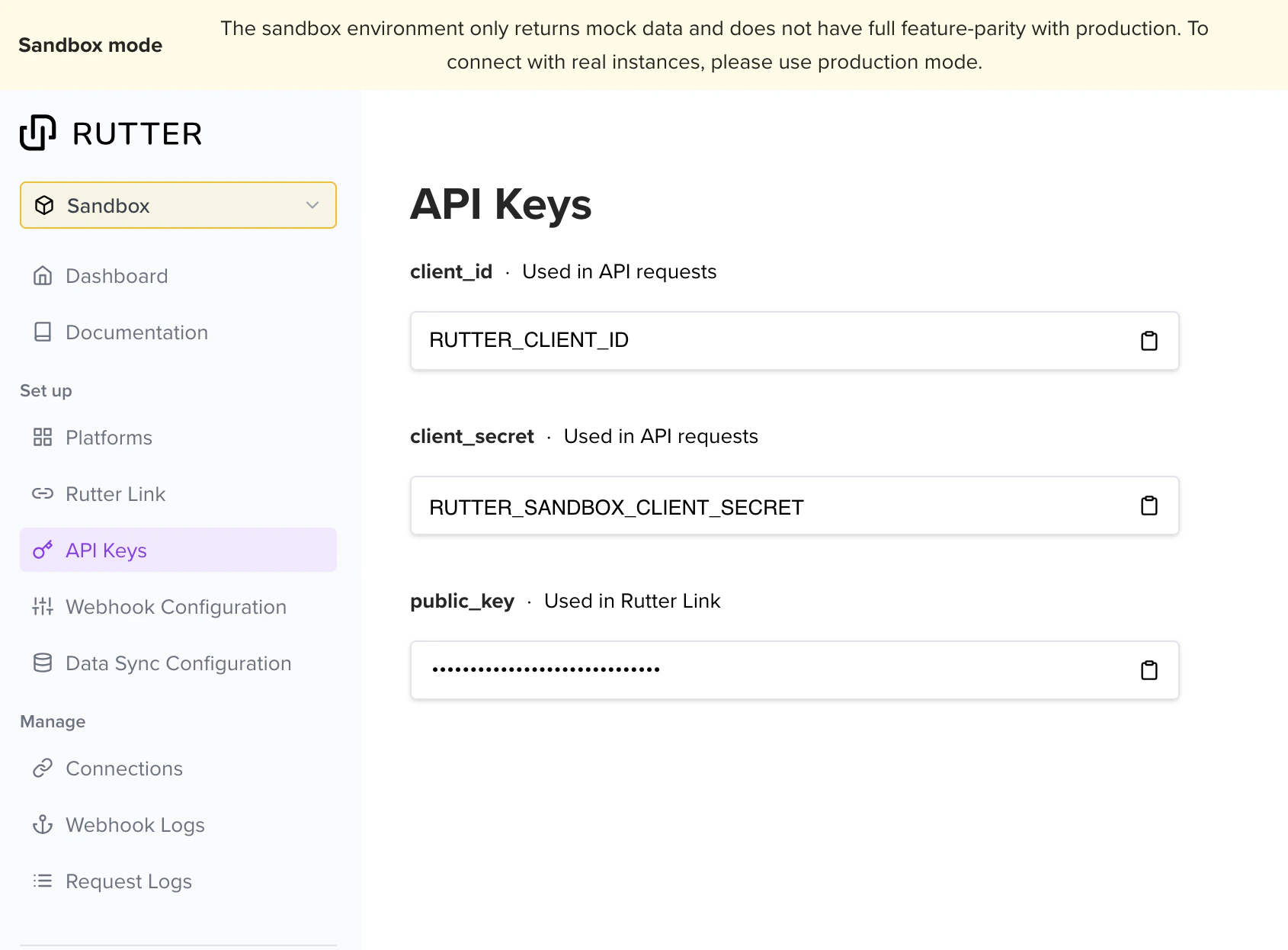
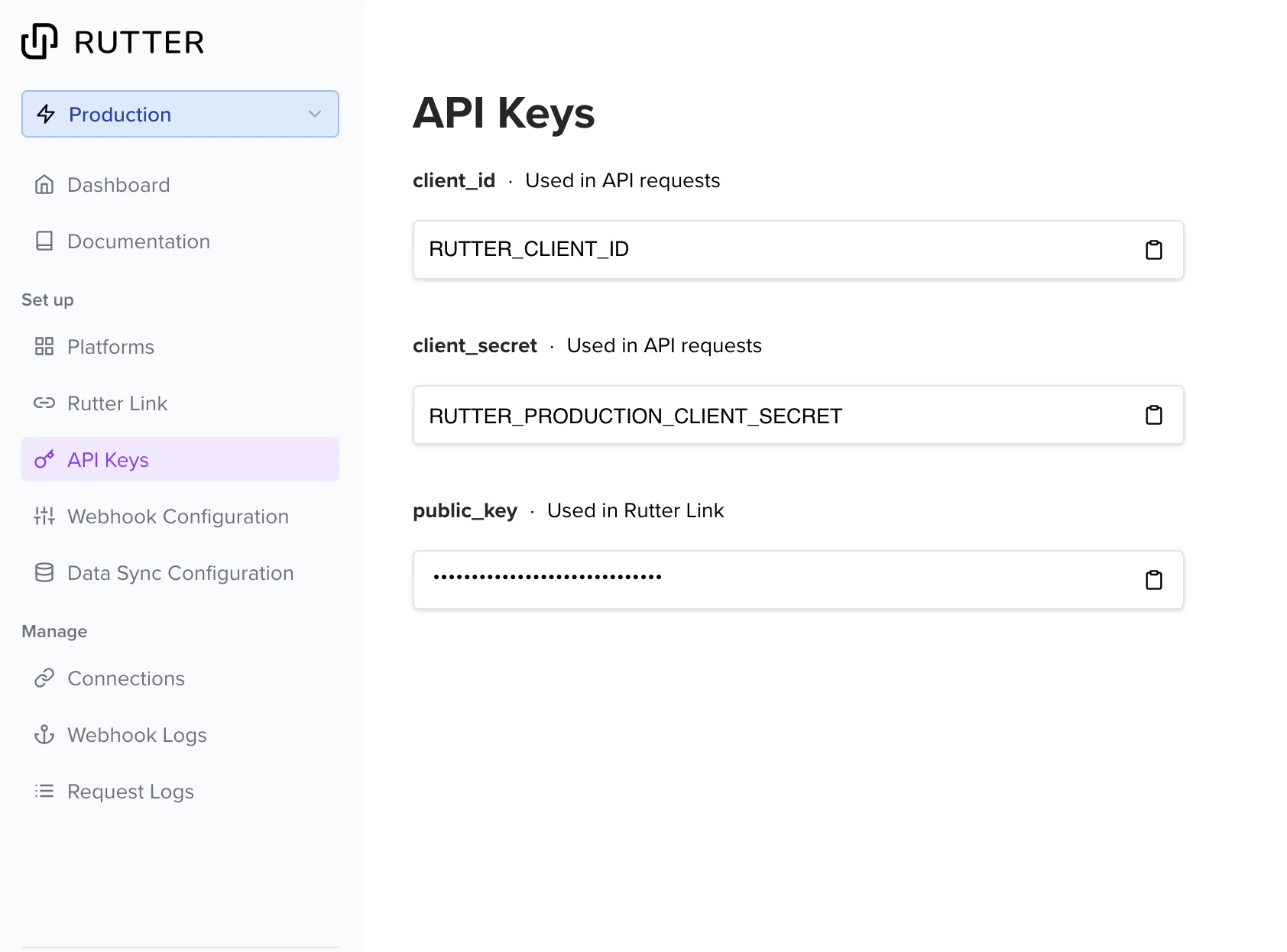 > 📘 Note that the `client_id` remains the same between Production and Sandbox mode, but the `client_secret` keys are separate between modes. You can toggle between the two modes via the dropdown on the top left of the Rutter Dashboard.
Once you've collected your Client ID and Client Secret from the Rutter dashboard, contact us directly at [api@tight.com](mailto:api@tight.com) for instructions on how to securely share these keys.
## Connect your user's commerce accounts
There are two primary ways to connect your users' commerce platform accounts to their company in Tight via Rutter:
1. Tight's Embedded UI provides UX from which users can kick off the Rutter connection flow, e.g. when onboarding in the [Transaction Dashboard](/v5.0/embeddable-ui/bank-transactions/transaction-dashboard-component). Users can select which commerce platform they want to connect from the available options.
2. Programmatically [link the user's Rutter connection](/v5.0/integrations/commerce/rutter) to Tight using a `public_token` value obtained from [Rutter's Connections API](https://docs.rutter.com/rest/2023-03-14/connections#create-a-connection).
> 📘 Note that the `client_id` remains the same between Production and Sandbox mode, but the `client_secret` keys are separate between modes. You can toggle between the two modes via the dropdown on the top left of the Rutter Dashboard.
Once you've collected your Client ID and Client Secret from the Rutter dashboard, contact us directly at [api@tight.com](mailto:api@tight.com) for instructions on how to securely share these keys.
## Connect your user's commerce accounts
There are two primary ways to connect your users' commerce platform accounts to their company in Tight via Rutter:
1. Tight's Embedded UI provides UX from which users can kick off the Rutter connection flow, e.g. when onboarding in the [Transaction Dashboard](/v5.0/embeddable-ui/bank-transactions/transaction-dashboard-component). Users can select which commerce platform they want to connect from the available options.
2. Programmatically [link the user's Rutter connection](/v5.0/integrations/commerce/rutter) to Tight using a `public_token` value obtained from [Rutter's Connections API](https://docs.rutter.com/rest/2023-03-14/connections#create-a-connection).