

Overview
Tight’s Business Intelligence Embedded experience makes it easy for you to provide your users with an easily digestible overview of their business’s key performance indicators. It also serves as a great way to onboard new users, as it gives them a glimpse of what kind of business intelligence they will receive by simply following a few quick onboarding steps.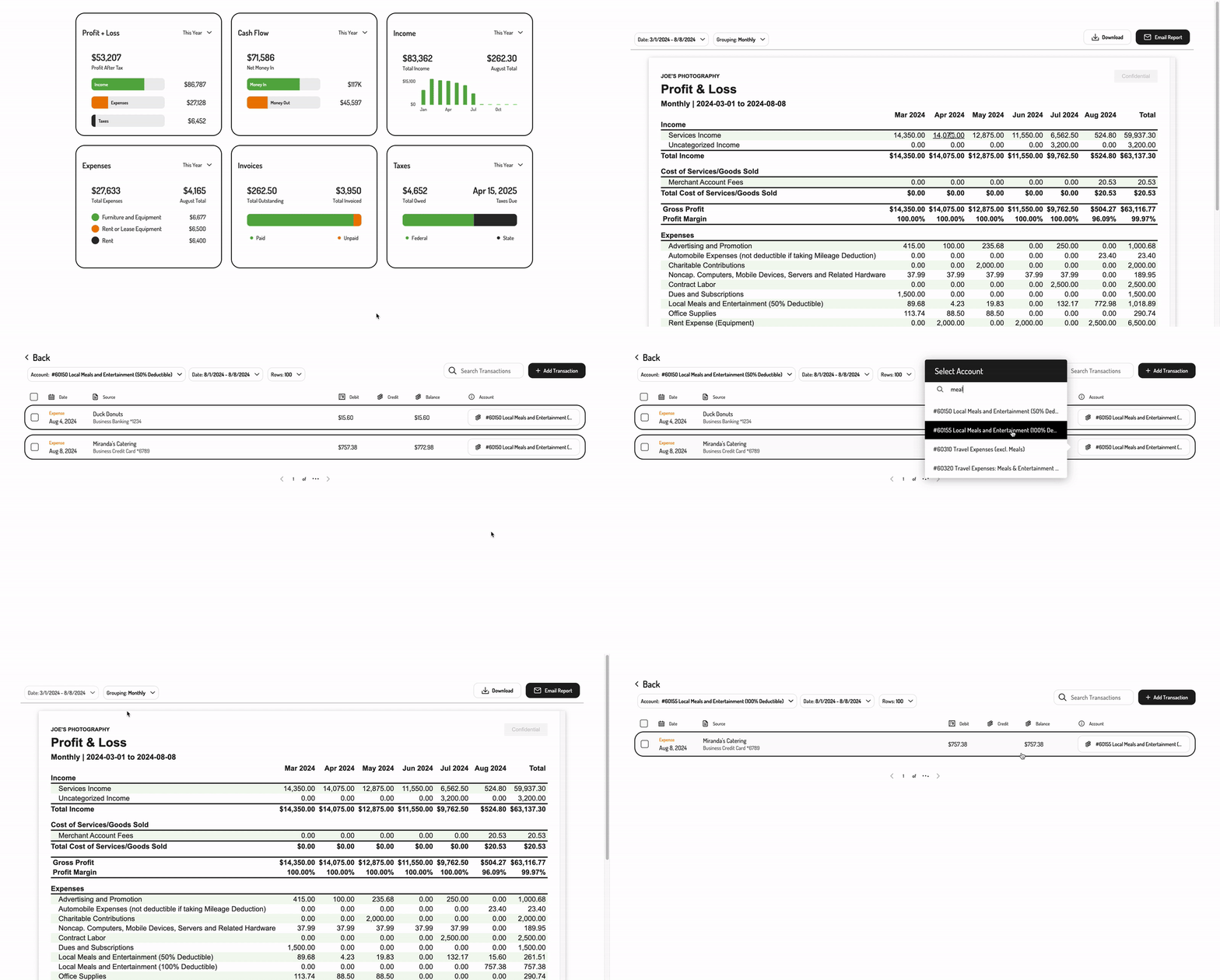
Embedding the Business Intelligence Tiles
To initialize the Tight Embedded experience using plain Javascript in your project, follow the instructions on Embedding Tight’s white-labeled UI. Below is an example JS embedding of the Business Intelligence Tiles:Options
Modifying the displayed tiles
If you’d like to alter or reorder the tiles being displayed, you can do so by populating abiTiles array within the options object as follows:
tiles array can contain any of the following values:
Using the tiles to onboard new users
The Business Intelligence tiles give users a glimpse into what kind of intelligence they will receive once they complete a few simple onboarding steps, including linking a bank account and setting up their tax profile. To encourage your users to fully onboard, you should include the optionalshowOnboarding parameter in the options object as follows:
- Bank account linking
- Invoice setup, including ability to accept credit cards
- Tax profile setup
Routing the tiles
In order to control where your user is routed when they click on a BI tile, you will want to take advantage of the Tight Embedded experience’sregisterBITileListener functionality. By registering a listener, the Tight Embedded experience will invoke the callback function you provide whenever a CTA is pressed by your user, so that you can route the user to the most relevant location within your app.
To register the listener, simply add the following line of JS to be run once after Tight.init({...}):
myBITileCallback will be invoked, with a JSON object as the single argument, containing the following attributes:
An example of the arguments passed to
myBITileCallback when a user presses on the Profit & Loss tile is shown below:
Contact Tight directly at api@tight.com should you need any help understanding how to use BI Tile listeners with the Tight Embedded experience.
Displaying tile tooltips
To give your users more context around the Business Intelligence Tiles, you can enable tooltips. Tooltips improve usability by providing quick explanations without cluttering the interface and help users understand tile data. To display them, you can include the optionalshowTileTooltips parameter in the options object as follows: