

1. Initializing the SDK
To initialize the Tight SDK in your project, follow the instructions on Embedding Tight’s white-labelled UI.2. Adding the Tax Dashboard to your app
To render the Tax Dashboard, you will need to provide theelementId parameter, which is the HTML id of the main <div> where you would like the Tax Dashboard to render. When your user taps on your “Taxes” navigation CTA, you simply need to invoke the following line of javascript:
3. Setting custom filters
If desired, you can route your user to a specific filtered view within the Tax Dashboard. Simply provide the filter attribute within the optional options object:4. Customizing the UI to match your branding
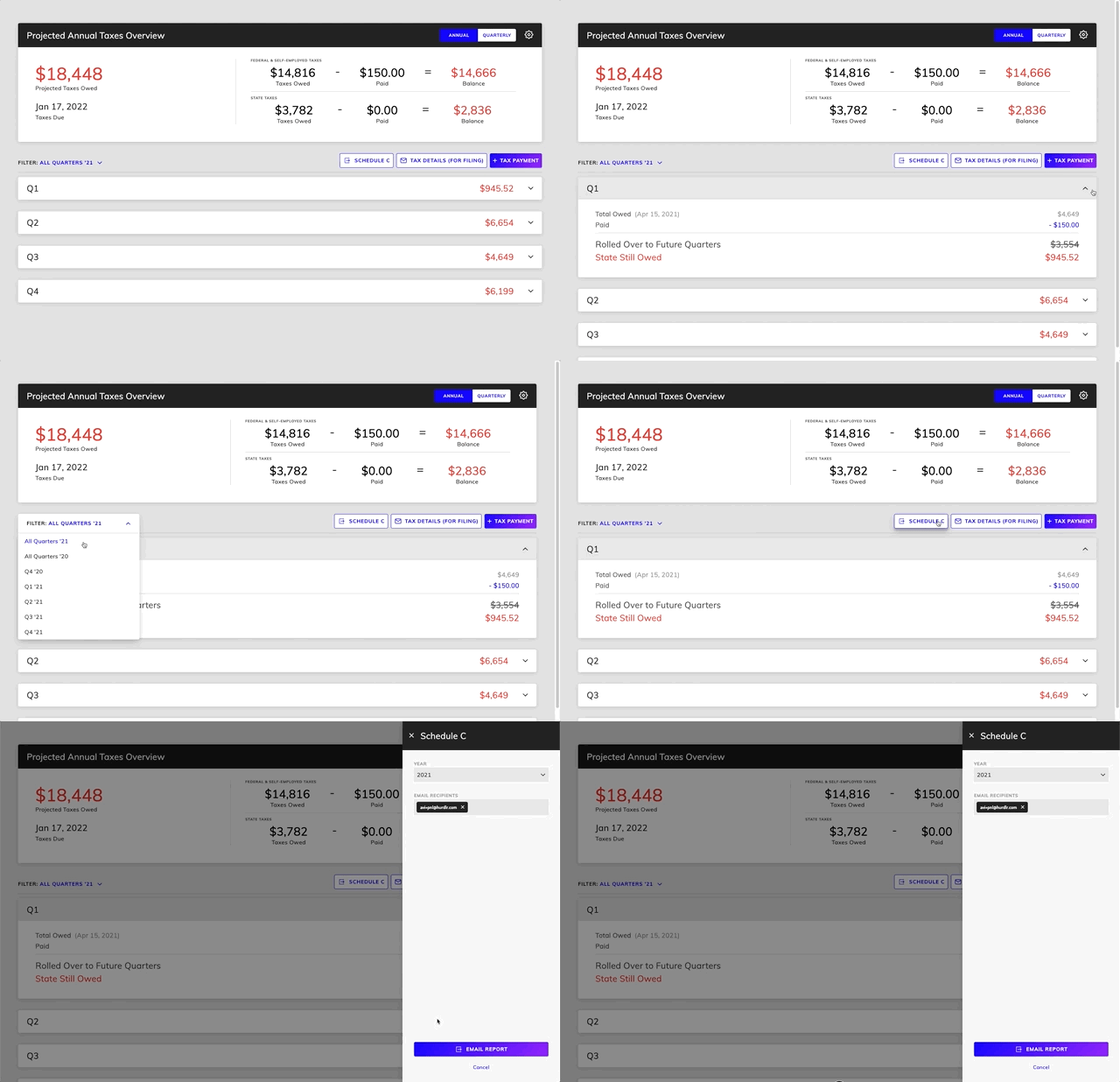
Tight’s API team can quickly customize the UI to match your branding. Please follow the instructions on Customizing the embedded UI to match your branding. Some examples of customized experiences are shown below: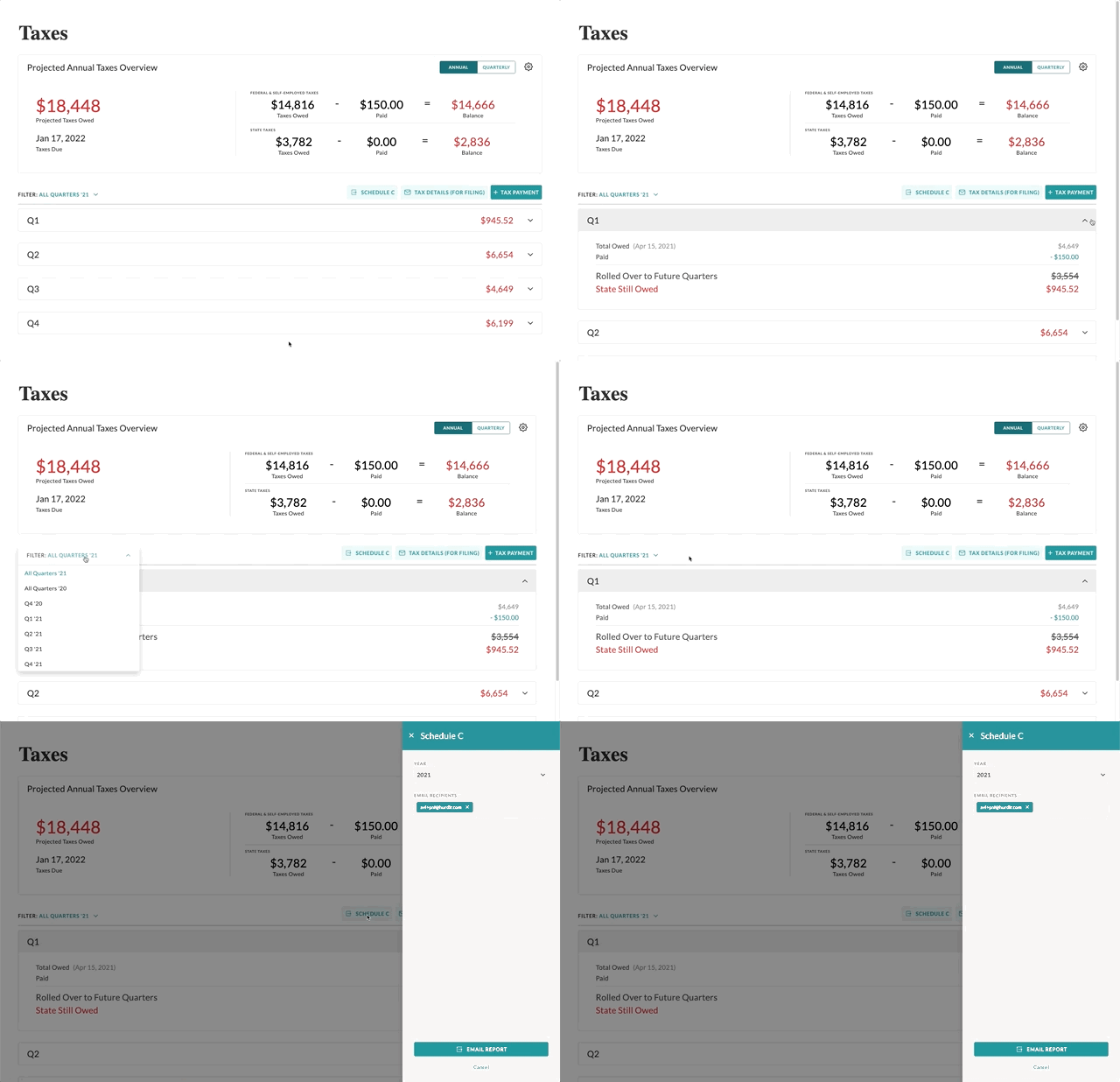
5. Optimizing conversions
In order to help you optimize your UX funnels, Tight exposes listeners for key calls to action (CTAs). By registering a listener, the Tight SDK’s existing zero state CTAs will invoke the callback function you provide, so that you can route the user to the proper place in your own UI. To register a listener, simply add one of the following lines of JS to be ran once afterHurdlr.init({...}):