

Overview
Instead of building an integration with Stripe in-house, Tight communicates directly with Stripe on your behalf using your Stripe platform account. This enables you to own the relationship between your customer and Stripe, including any associated economic benefits, while getting a seamless invoicing user experience with automatic payout reconciliation on the user’s books.Automated Reconciliation
Stripe deposits money directly into your users’ bank accounts on a regular cadence. When utilizing one of the Tight Bank Transactions integrations, e.g. Plaid, the bank deposit to the user’s bank account will also be ingested by the Tight API as part of that integration’s bank feed. Importantly, Tight’s algorithms automate the reconciliation between that bank deposit and the itemized transactions within Stripe, saving your users time that would have otherwise been spent manually reconciling these transactions in legacy accounting systems. See the Invoice Payout Example to understand the level of complexity that Tight automates.Become a Stripe Platform
If you haven’t already done so, you should create a Stripe account for your company/app. Once you have created a Stripe account, some admin-only confirmation is required:Enable Stripe Connect
Stripe Connect is what allows your app to facilitate payments so that your customers can accept invoice payments from their clients.Step 1: Create Stripe Account
After you have created your Stripe account, you will want to enable Stripe Connect by clicking the “Get Started” button on the Connect tab of your Stripe dashboard and following the steps. Once you have activated Stripe Connect, you should navigate to the Connect settings screen, where you will be prompted to enter company-specific info, including your brand colors.Step 2: Enable OAuth
Once completed, on the top right of the header, you can click “Test mode”, to toggle into the sandbox environment. Next, you should navigate to the Connect Settings screen. From there, click into “Onboarding options”, then to the “OAuth” tab. Toggle on the “Enable OAuth” option.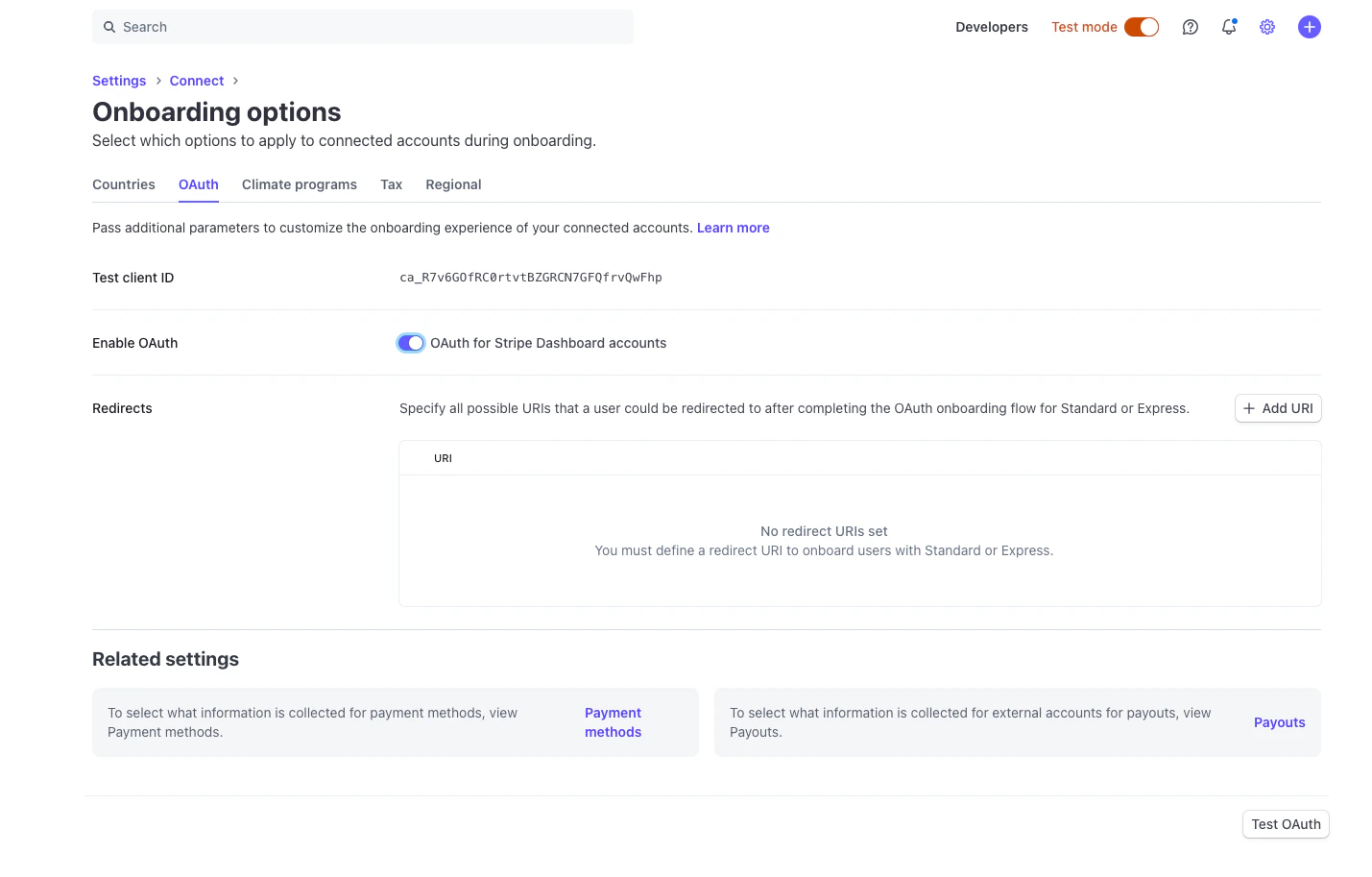
Step 3: Configure Redirects
Next, under “Redirects”, you should addhttps://redirect.sandbox.hurdlr.com/integrations/stripe.
Please note down the “Test client ID”.
Step 4: Production Setup
Once you are ready to go live in the “Production” environment, on the top right of the header, you can disable the “Test mode” toggle, and repeat the above steps. Under “Redirects”, you should addhttps://redirect.prod.hurdlr.com/integrations/stripe.
Connect Tight Webhook URLs to Stripe (Real-Time Updates)
By subscribing the Tight API to receive webhooks on your Stripe dashboard, Tight will be able to pull in updates to your users’ invoice updates in real-time. To do so, in your Stripe Dashboard, click on Developer -> Webhooks.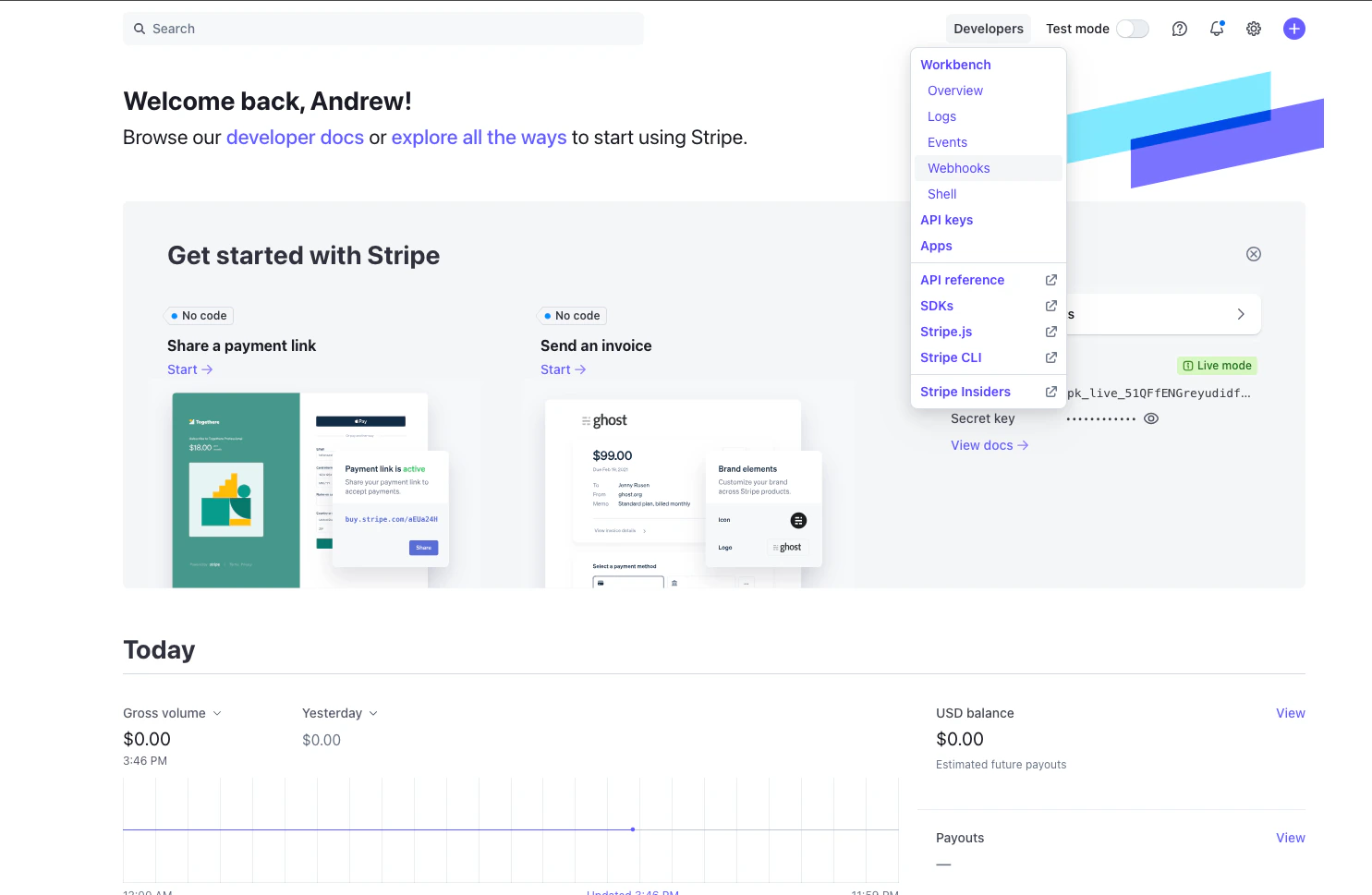
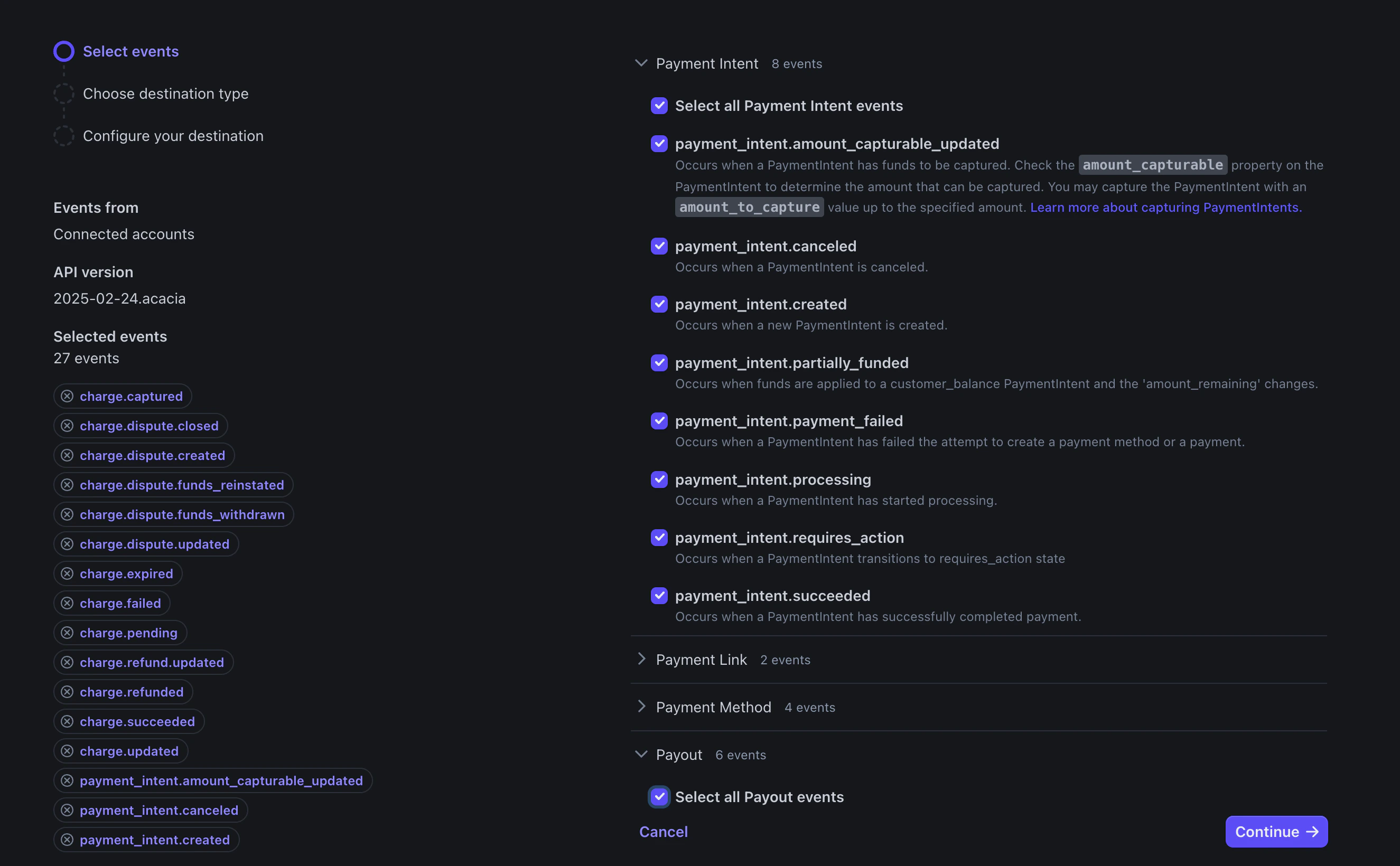
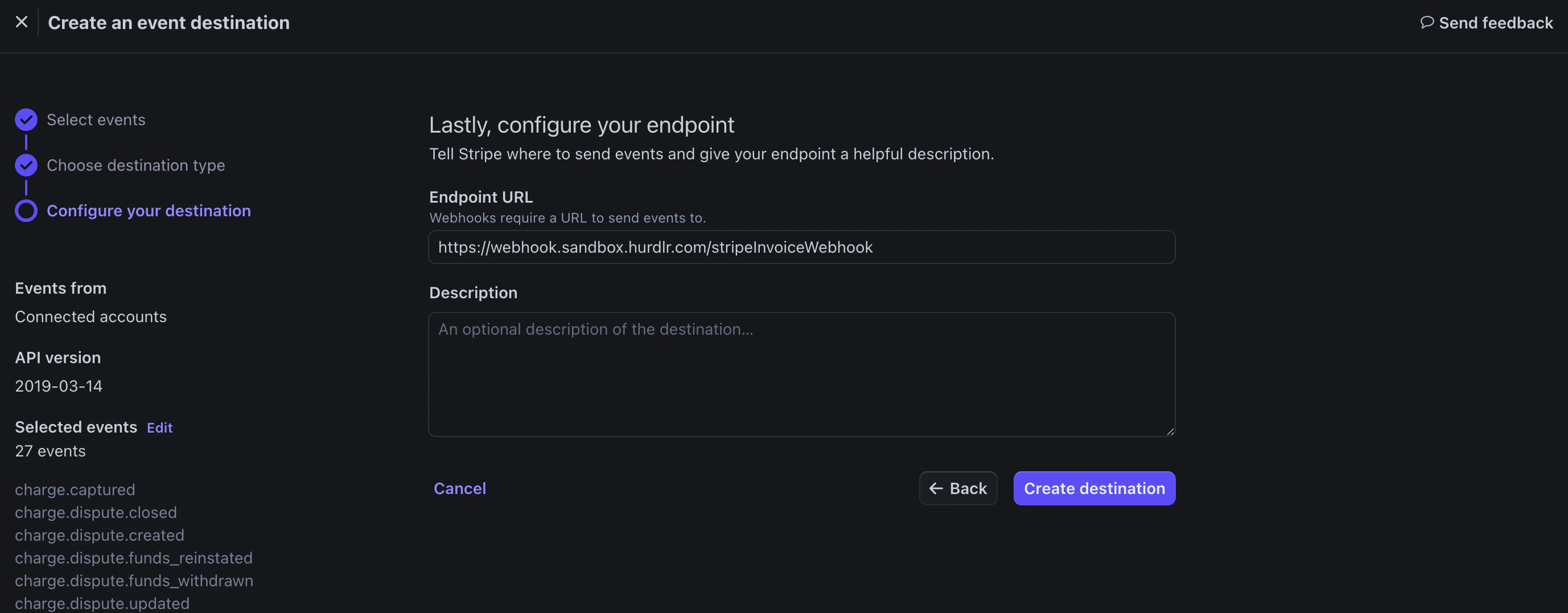
https://webhook.sandbox.hurdlr.com/stripe.
For Live mode, add https://webhook.prod.hurdlr.com/stripe.
Securely share your Stripe keys
The last field that is needed is a “Secret key”, which you can find on the API keys page. Under the “Standard keys” section, you will see a ” Secret key” row. You should note down thetoken field for the Secret key.
Once collected, use the Tight API to configure your Stripe integration.
Connect your user’s Stripe accounts
There are three primary ways to connect your users’ Stripe accounts to their company in Tight:- For partners including Payment Processing linkage from their own UX, use the Start Stripe Flow API which wraps the entire OAuth 2.0 flow such that you simply need to redirect your user to a single URL
- Tight’s Embedded UI also provides UX from which users can kick off the Stripe connection flow, e.g. when onboarding in the Invoice Dashboard
- For partners with existing Stripe integrations, programmatically link the user’s Stripe account